![[Previous]](../graphics/prev.gif)
![[Contents]](../graphics/contents.gif)
![[Index]](../graphics/keyword_index.gif)
![[Next]](../graphics/next.gif)
|
|
|
|
softFax starts with the following screen:
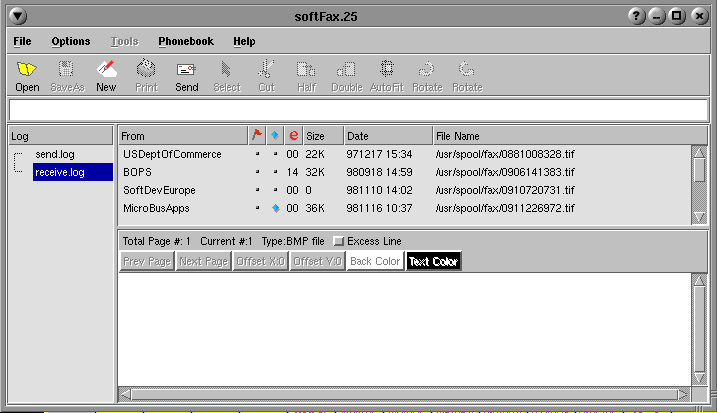
It starts with the tools menu, image information, and some icons disabled since no file has yet been opened.
 Open File - open a file by selecting one
 Save As - save the current open file under the same or different name and
format
Save As - save the current open file under the same or different name and
format
 Compose - make a new fax or edit a fax
 Print
- print the current open file
Print
- print the current open file
 Send -
send a tiff, bmp, and/or gif file or files to another machine
Send -
send a tiff, bmp, and/or gif file or files to another machine
 Select
- start capturing an image for later cut or copy and paste
Select
- start capturing an image for later cut or copy and paste
 Cut - save
the captured image and clear
Cut - save
the captured image and clear
 Half -
make the image half size
Half -
make the image half size
 Double
- make the image double size
Double
- make the image double size
 Auto fit - make the image fit the view screen width
 CW - rotate 90
degrees in a clockwise direction
CW - rotate 90
degrees in a clockwise direction
 CCW - rotate
90 degrees in a counterclockwise direction
CCW - rotate
90 degrees in a counterclockwise direction

This shows the name of the file that is currently displayed, or the job currently in progress, such as loading or scaling. You can also open a file by typing the name here.
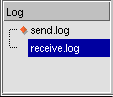
A list of available log files.
 Updated mark - log file
has been changed by fax program.
Updated mark - log file
has been changed by fax program.
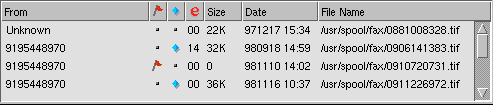
It displays the content of the selected log file. The information is 'From/To', 'Tag', 'New', 'Error', 'Size', 'Date', and 'File Name'. If the selected log is a receive log, it displays all of the entries under a 'From' column heading. If the selected log is a send log, it displays the entries under a 'To' heading. If the 'From/To' value in a log file entry matches an address (usually a phone number) in your individual phonebook, the phonebook name replaces the value in the 'From/To' column.

If there is an open file, this panel shows its characteristics. You can also move to the next or previous page, if any, and change the offsets and color.
|
|
|
|